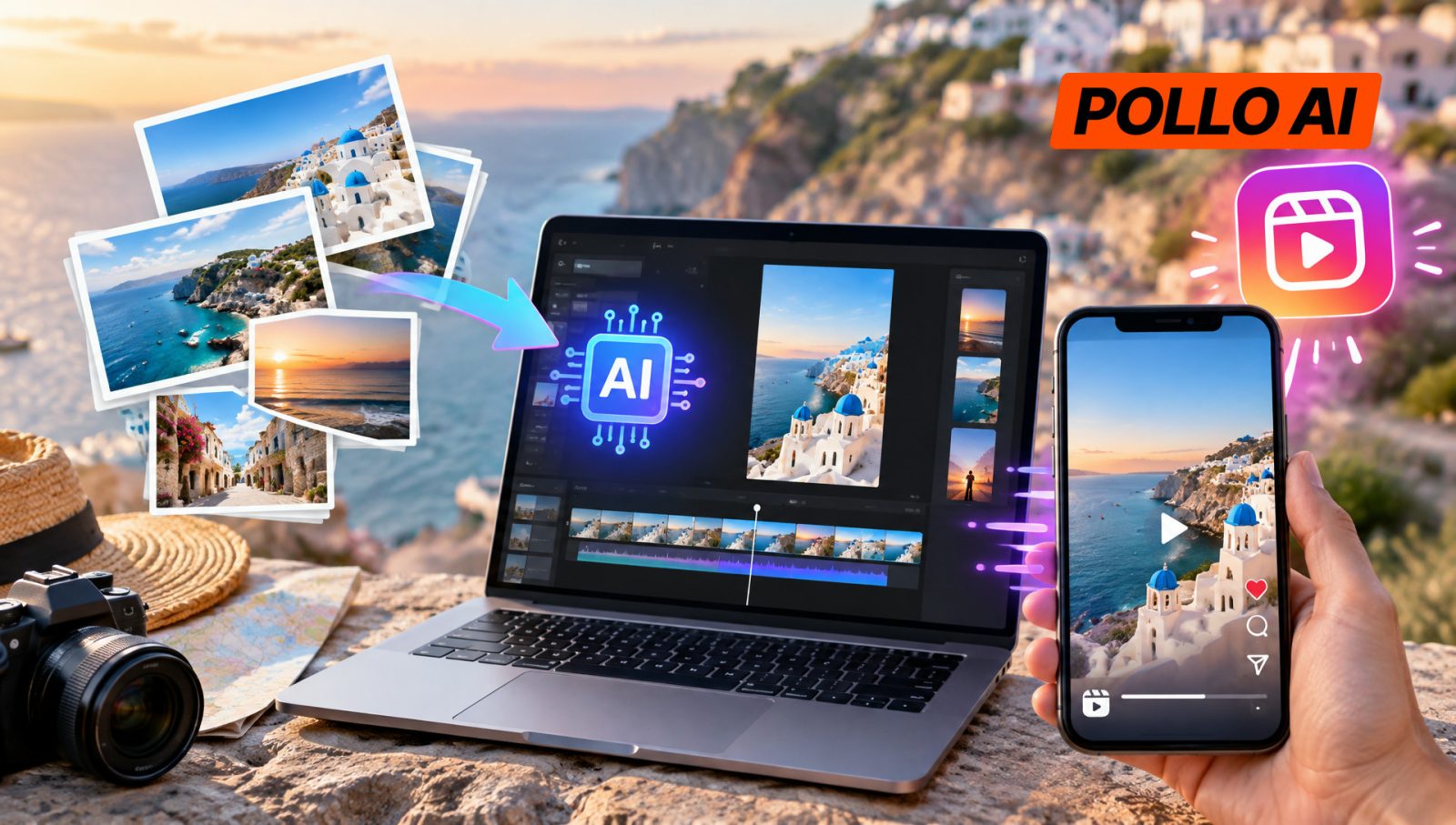
Got plenty of travel photos but barely any video footage? Pollo AI Image to Video can animate selected pictures, making it easier to create Instagram Reels without filming everything again. Here’s how to turn a camera roll into a short travel recap.
What Is Pollo AI Image to Video and Why Use It for Travel Reels?
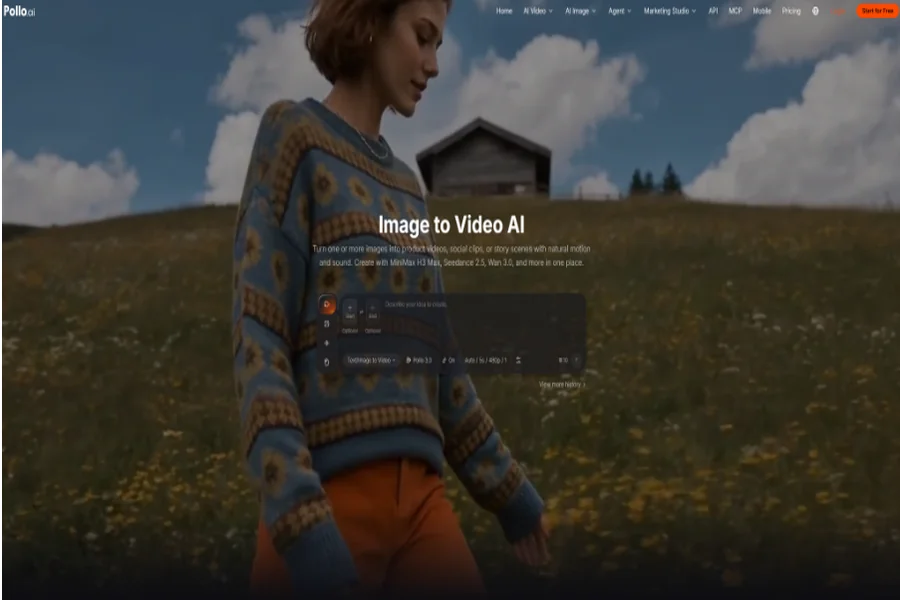
Pollo AI Image to Video is an AI tool that turns still images into video clips based on text prompts. It offers multiple video models and supports instructions for motion, camera movement, pacing, and mood. Depending on the model and workflow, users can also generate audio and adjust the video framing.
For travel creators, a beach photo can become a clip with moving waves, while a street scene can take on a slow camera movement. Pollo AI Image to Video offers a way to turn travel photos into a travel video without having to record new footage. Creators can then combine the generated clips with still images to make a recap of their trip.
Results vary by image and model, so generated footage still needs review. Faces, buildings, and other details may change during animation, particularly when the prompt asks for dramatic movement.
How to Turn Travel Photos into Instagram Reels with Pollo AI
Step 1: Choose Photos That Suit the Scene
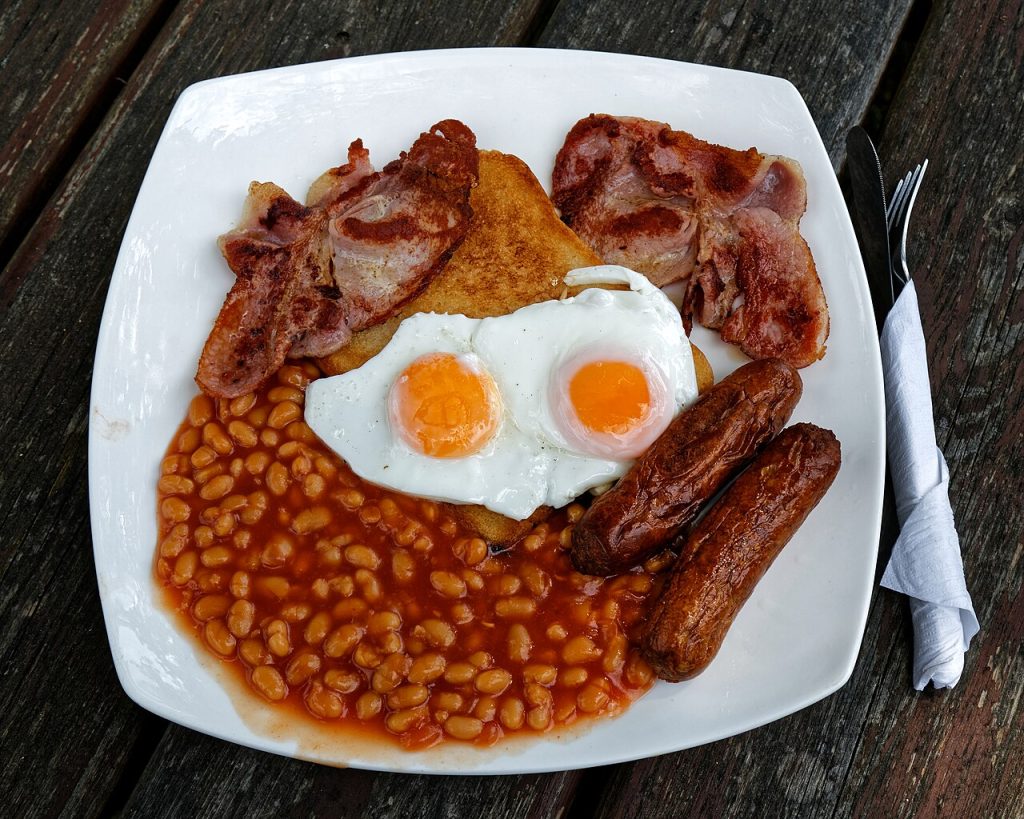
Select three to five photos that show different parts of the trip, such as a landmark, a local meal, a street, and a sunset. Clear images with recognizable subjects tend to be easier to animate. Wide landscapes suit slow pans, while streets with visible depth work well for gradual camera movements.
Step 2: Upload a Photo
Open Pollo AI Image to Video, upload a photo, and choose an available video model. Start with an image that has one clear focal point so the generated movement is easier to assess.
Step 3: Describe the Movement
Enter a prompt explaining what should happen in the shot. Keep the instruction focused on the subject and one main movement.
For a beach photo, try:
“Slowly move the camera toward the ocean as small waves roll onto the shore. Keep the horizon and coastline stable, with natural movement and soft afternoon light.”
Step 4: Generate and Review the Clip
Generate the video and check whether the movement looks natural and the scenery remains recognizable. If buildings warp or the water looks unnatural, simplify the prompt or try another available model. Repeat the process for the other photos, but only keep clips that improve the final Reel.
Step 5: Edit the Reel
Arrange the clips in a video editor, starting with a strong view of the destination and moving through sightseeing highlights. Use a 9:16 vertical canvas, trim awkward sections, and add music or short location labels where useful. Watch the finished Reel on a phone to check the framing and pacing before publishing.
Tips for Better Travel Photo-to-Video Reels
Match the movement to the photo. A slow pan works for a mountain view, while a gentle push-in can draw attention to a landmark or meal. Using the same movement for every shot can make the Reel feel repetitive.
Keep prompts simple. Asking for moving clouds, walking people, changing weather, and a rotating camera all at once can make a shot harder to control. Start with one main action and adjust only when needed.
Protect recognizable details. Travel content depends on showing real places. If a generated clip changes a building or a person’s face, try another version or use the original photo as a still frame.
Mix video with still photos. Not every image needs animation. A few moving clips between static shots can create a more natural pace without making the Reel feel overprocessed.
Final Thoughts
Pollo AI Image to Video offers a practical way to turn travel photos into short clips for Instagram Reels. Choose images that suit the intended movement, keep prompts focused, and review each result before editing. A few well-chosen clips can make a trip recap more engaging without turning a simple project into a lengthy editing task.